
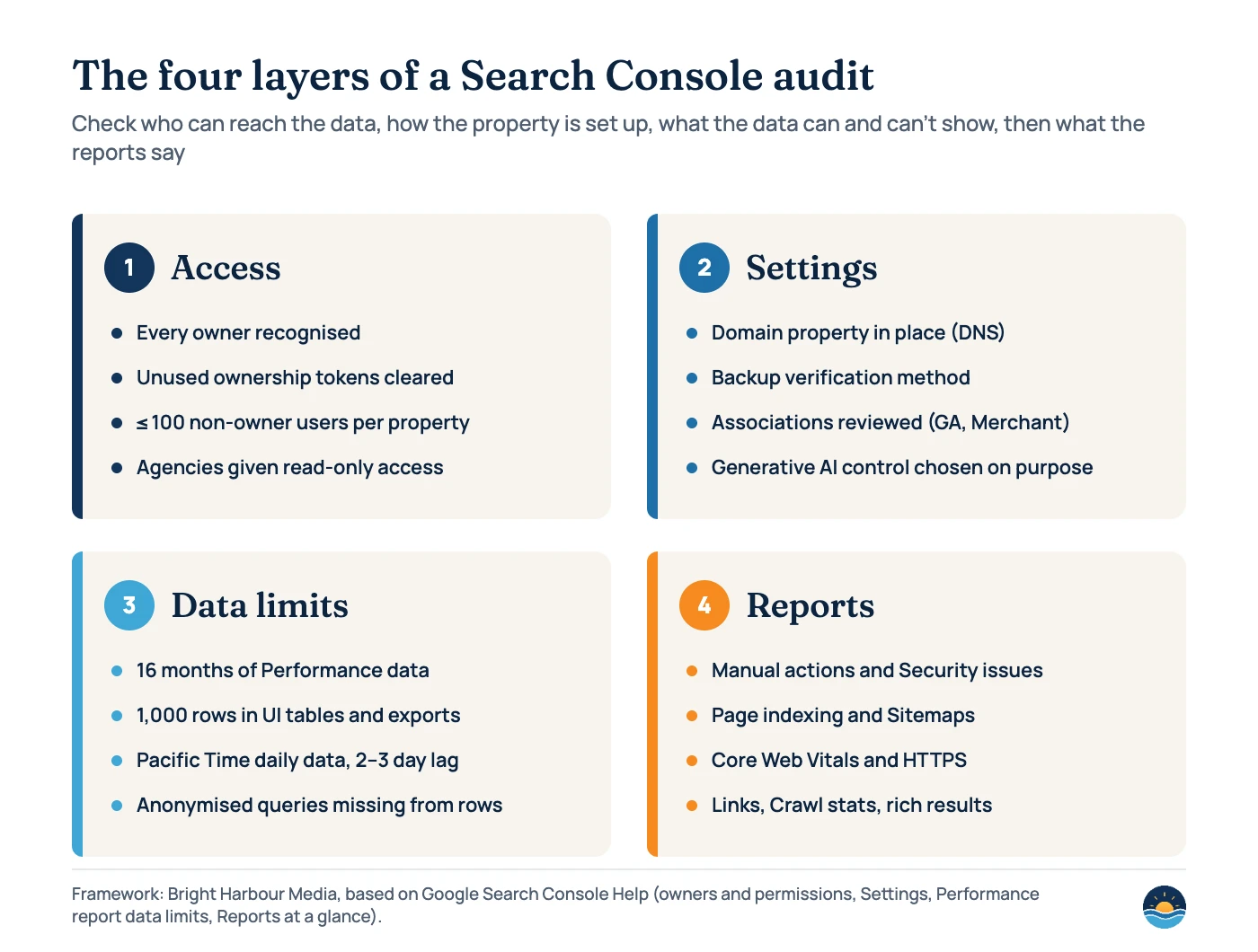
A Search Console audit checks that a site’s Google Search Console account is set up correctly, that only the right people can reach it, and that its reports are read with their limits in mind. It covers four layers: access (owners, users and verification tokens), settings, data limits, and the reports that flag indexing, security and penalty problems.
Key takeaways
- A property can have up to 100 non-owner users, and a removed owner who still has a verification token on the site “will be able to re-verify ownership” until the token is deleted.
- Domain properties cover every subdomain and protocol but can only be verified by DNS record; Google warns that removing a verification token makes permissions expire “after a certain grace period”.
- Performance tables and exports show a maximum of 1,000 rows, data usually arrives in 2–3 days, and the API is capped at 50,000 rows per day per search type per property.
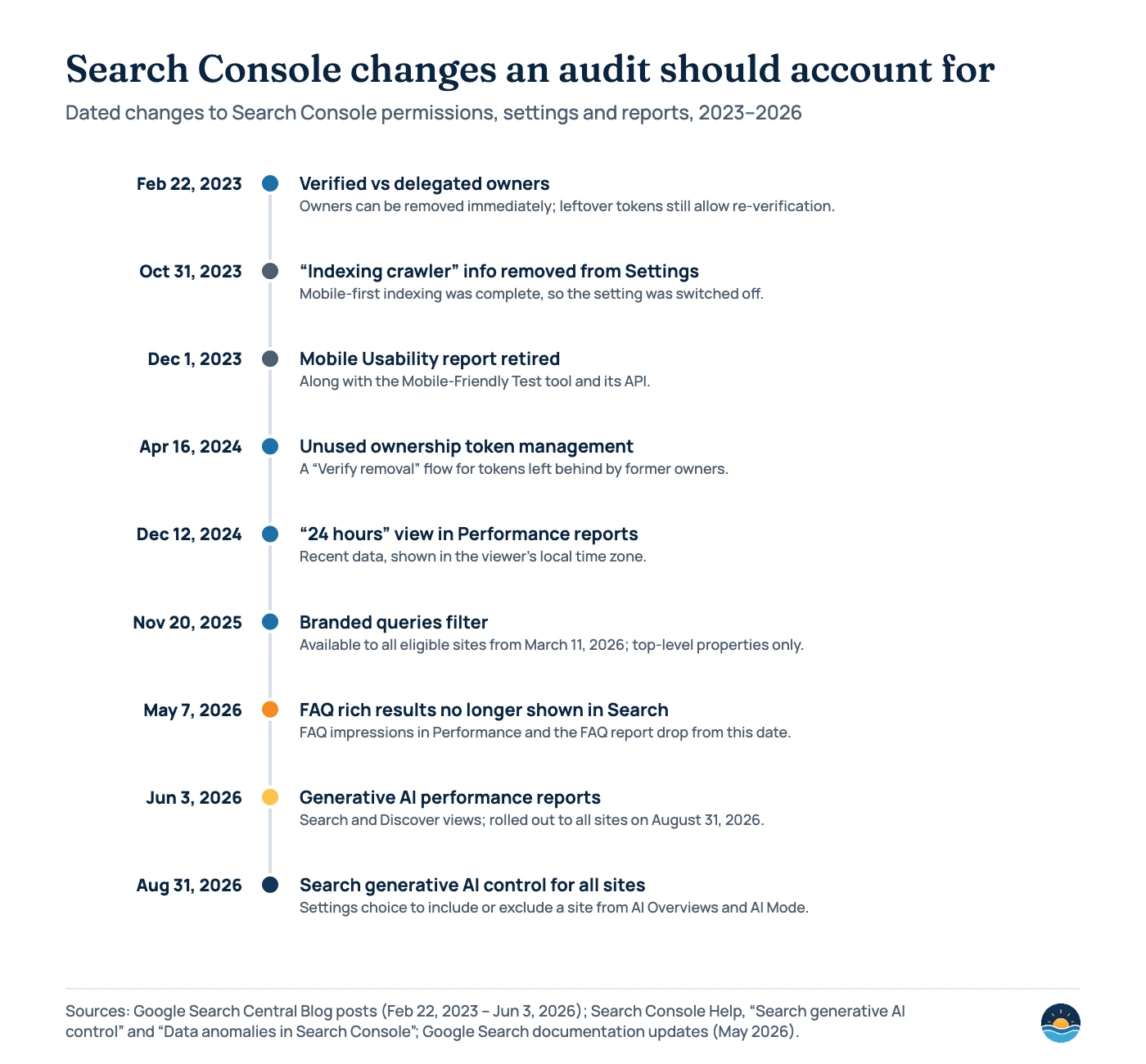
- Since August 31, 2026, every site has a Search generative AI control in Settings that decides whether its content can appear in AI Overviews, AI Mode and generative AI features in Discover.
- Several reports and settings have gone since 2023, including Mobile Usability (December 1, 2023) and FAQ rich results (no longer shown from May 7, 2026), so older audit checklists need updating.
Why audit Search Console itself?
Most SEO audits use Search Console as a data source. Fewer check the account. That matters because Search Console is where Google reports manual actions and security issues, where sitemaps and address changes are submitted, and, since 2026, where a site owner chooses whether content can appear in Google’s generative AI features. If a former agency still has owner access, or the only verified owner has left the business, you can lose control of all of that.
It is also the first thing we check when a new client hands over access. Google’s own advice on hiring an SEO says to “only grant read access to Search Console (at this stage, don’t grant them write access)” during an audit. The framework below is how we work through it.
Is the property set up the right way?
Start with the property type. Google’s help page lists two kinds for websites. A URL-prefix property “includes only URLs with the specified prefix, including the protocol”, so http, https, www and each subdomain need their own property. A Domain property “includes all subdomains (m, www, and so on) and multiple protocols”, and can only be verified by DNS record. Domain properties launched in February 2019, but many older accounts still rely on a single https://www. property.
| Check | URL-prefix property | Domain property |
|---|---|---|
| What it covers | One protocol and host, and paths below it | All subdomains and protocols |
| Verification methods | HTML file, HTML tag, Google Analytics, Google Tag Manager, Google Sites/Blogger, DNS | DNS record only |
| Robots.txt report | Only for host-level properties (such as https://example.com/), checking one origin | Shows robots.txt files for the top 20 hosts |
| HTTPS report | Only for HTTPS URL-prefix properties | Available |
| Crawl stats report | Only for root-level properties | Available |
| Best use in an audit | Sections or subfolders you report on separately | The main property for the whole site |
Next, check verification. Search Console “periodically checks if your verification token is still present and valid”, and if it cannot confirm it, “your permissions on that property will expire after a certain grace period”. Google recommends more than one method, so a theme change that drops an Analytics tag does not lock everyone out. For a Domain property, the DNS record must stay in place: “don’t remove the DNS record from your provider, even after verification succeeds.” Also note that “if all verified owners lose access to a property, all users will lose access.”
Who has access, and should they?
Open Settings › Users and permissions. Search Console has four roles, and the differences matter when a contractor or agency is involved.
| Role | What Google says it can do | Audit question |
|---|---|---|
| Verified owner | Full control; proved ownership with a token on the site | Is every verified owner a current employee or trusted partner? |
| Delegated owner | Full control; added by an owner without a token | Does this person still need owner rights? |
| Full user | “View rights to all data and can take some actions” | Would restricted access do the job? |
| Restricted user | “Simple view rights on most data” | Is the account still in use? |
| Associate | Linked account (for example Google Analytics) that “can’t open or view your Search Console account” | Is the association still wanted? |
The most common problem is a former owner who was removed from the list but not from the site. Google is clear: “If you do not delete these tokens, the removed owner will be able to re-verify ownership if they choose to.” Look for leftover tokens under Unused ownership tokens on the Users and permissions page (added in April 2024), and check the ownership history. If you find an owner you don’t recognise, Google warns “you might have been hacked”. For sites verified through Google Analytics or Tag Manager, removing someone for good also means removing their Analytics edit rights or Tag Manager publish rights.
Which settings should you check?
The Settings page lists ownership verification, users and permissions, associations, change of address, bulk data export, shipping and returns, robots.txt, crawl stats, the date the property was added and property removal. Four deserve a closer look.
- Associations. A Google Analytics property can be linked to only one Search Console property at a time, and “anybody with access to that Google Analytics property may be able to see Search Console data”. Check that the link points at the main property and that the Analytics user list is tidy.
- Change of address. Only used for domain moves. Google shows move notices for 180 days and says to keep redirects for at least that long. If a move is listed, confirm it was intended. Our domain migration guide covers the full process.
- Search generative AI. Rolled out to all websites on August 31, 2026. “Include” is the default; “Exclude” removes your links and content from AI Overviews, AI Mode and generative AI features in Discover, usually within a few days. Child properties inherit their parent’s choice. Make sure the current setting was chosen on purpose.
- Email preferences. These are “set at the user level, not the property level”, so each person must check their own. Messages still appear in the message panel either way.
What are the data limits to know?
Search Console data is reliable, but it is not complete. An audit should note these limits before anyone draws conclusions from a chart.
| Limit | What Google says | What it means for the audit |
|---|---|---|
| History | 16 months of Performance data (since the 2018 relaunch) | Export data you want to keep longer; year-on-year comparisons stop at 16 months |
| Rows in tables and exports | “The table can display a maximum of 1,000 rows”; exports are “truncated to 1,000 rows” | Large sites need the API or bulk data export for full query and page lists |
| API | 50,000 rows of data per day per search type, per property | Plan exports for large sites, or use bulk data export, which is not affected by the row limit |
| Freshness | “Collected data is usually available in 2–3 days” | Don’t judge a change from the last two days of data |
| Time zone | Daily data is in Pacific Time, except the 24-hour view | Daily totals may not match analytics tools in other time zones |
| Privacy | Anonymised queries are omitted from rows but included in chart totals unless you filter by query | Query rows won’t add up to the total clicks |
Also check Google’s “Data anomalies in Search Console” page for the period you are reviewing. It lists known logging issues, such as an impressions logging error between May 13, 2025 and April 27, 2026 that Google says did not affect clicks. For reporting, see our guide to SEO reporting KPIs.
Which reports should the audit review?
| Report | What it shows (Google’s description) | What to look for |
|---|---|---|
| Manual actions | Issues where “a human reviewer at Google has determined” pages break Google’s spam policies | Any open action. See manual actions |
| Security issues | Whether a site “was hacked, or… exhibits behavior that could potentially harm a visitor” | Any open issue |
| Page indexing | “See which pages Google can find and index” | Important pages not indexed. See Page indexing report |
| Sitemaps | Statuses: Success, Has errors, Couldn’t fetch | Old or broken sitemaps; each sitemap is limited to 50MB or 50,000 URLs |
| Core Web Vitals | LCP, INP and CLS from “real world usage data” | Poor URL groups on mobile |
| HTTPS | “How many indexed URLs on your site are HTTP vs HTTPS” | Any HTTP URLs still indexed |
| Removals | Temporary removals last “about six months”; also outdated content and SafeSearch | Removals nobody remembers requesting |
| Links | “See who links to you the most” | Unexpected spikes or odd anchor text |
| Crawl stats | Googlebot crawl history; sites under 1,000 pages “should not need” it | Rising server errors or slow responses |
Fix this week
- Owners or tokens you can’t account for
- Any manual action or security issue
- A sitemap with “Couldn’t fetch”
- A generative AI setting nobody chose
Note and monitor
- FAQ or retired rich result reports going quiet
- Known data anomalies in the date range
- Small sites ignoring Crawl stats
- Row limits on large-site exports
A seven-step Search Console audit
- Confirm the property type. Make sure a Domain property exists and is verified by DNS, with URL-prefix properties only where you need section-level views.
- List every owner and user. Remove anyone who no longer needs access, and downgrade full users to restricted where that is enough.
- Clear unused ownership tokens. Delete leftover HTML files, meta tags or DNS records for removed owners, then use “Verify removal”.
- Add a backup verification method. Pair DNS with an HTML file or tag so a template change can’t lock you out.
- Review Settings. Check associations, any change of address, the Search generative AI control and each person’s email preferences.
- Check the problem reports first. Manual actions, Security issues, Page indexing and Sitemaps, then Core Web Vitals, HTTPS, Removals, Links and Crawl stats. Use the URL Inspection tool on key pages.
- Record the data limits. Note the 16-month window, 1,000-row cap and any data anomalies in your audit notes, and set up the API or bulk export if the site is large.
Frequently asked questions
How often should you audit Search Console?
Check access whenever staff or agencies change, and review the problem reports at least monthly. A full audit of property setup, users and settings once or twice a year is enough for most small sites.
Should an agency be an owner in Search Console?
Not at the audit stage. Google advises giving an SEO read access only while they audit. If an agency later needs to submit sitemaps or use the Change of Address tool, owner rights can be added and removed again when the work ends.
What happens if the only verified owner leaves?
Google says that if all verified owners lose access, all users lose access too. Keep at least two verified owners from the business, and don’t remove the DNS verification record.
Does excluding a site from generative AI features affect rankings?
Google says the Search generative AI control is not used as a ranking or inclusion signal for other parts of Search. It only decides whether your content can appear in features like AI Overviews and AI Mode.
Sources
- Add a website or platform property to Search Console — Search Console Help: property types, 1,000 properties per account
- Verify your site ownership — Search Console Help: methods, grace period, DNS
- Managing owners, users, and permissions — Search Console Help: roles, limits, unused ownership tokens
- Search Console Property Settings page — Search Console Help: settings list
- Associations — Search Console Help: Google Analytics and Merchant Center associations
- Change of Address tool — Search Console Help: 180-day notices and redirects
- Search generative AI control — Search Console Help: all websites from August 31, 2026
- Email Preferences page — Search Console Help: user-level settings
- Performance report (Search results): Troubleshooting data discrepancies — Search Console Help: 1,000 rows, 2–3 days, Pacific Time
- Performance report (Search results): Dimensions and data groupings — Search Console Help: anonymised queries
- Export Search Console data using the Search Console API — Search Console Help: 50K rows per day per type per property
- Data anomalies in Search Console — Search Console Help: known logging issues
- Reports at a glance — Search Console Help: report descriptions
- Sitemaps report — Search Console Help: statuses
- Build and Submit a Sitemap — Google Search Central (last updated July 8, 2026): 50MB or 50,000 URLs
- Do You Need an SEO? — Google Search Central (last updated June 5, 2026): read access during audits
- Introducing the new Search Console — Search Central Blog, January 8, 2018: 16 months of data
- Updating Search Console users and permissions management — Search Central Blog, February 22, 2023
- Improving Search Console ownership token management — Search Central Blog, April 16, 2024
- Introducing Search Generative AI performance reports in Search Console — Search Central Blog, June 3, 2026
- Latest Google Search Documentation Updates — Google Search Central: FAQ rich results no longer shown from May 7, 2026
Cite this article: Bright Harbour Media. “Google Search Console Audit: Access, Settings and Reports.” Bright Harbour Media Insights, November 2026. https://brightharbourmedia.com/search-console-audit/
You are welcome to reference the charts and frameworks in this article with a link back to this page.
Want a second pair of eyes on your Search Console setup and what it’s telling you? See our SEO audit service or get in touch.